How to Track a Hike With Your iPhone Screen Locked
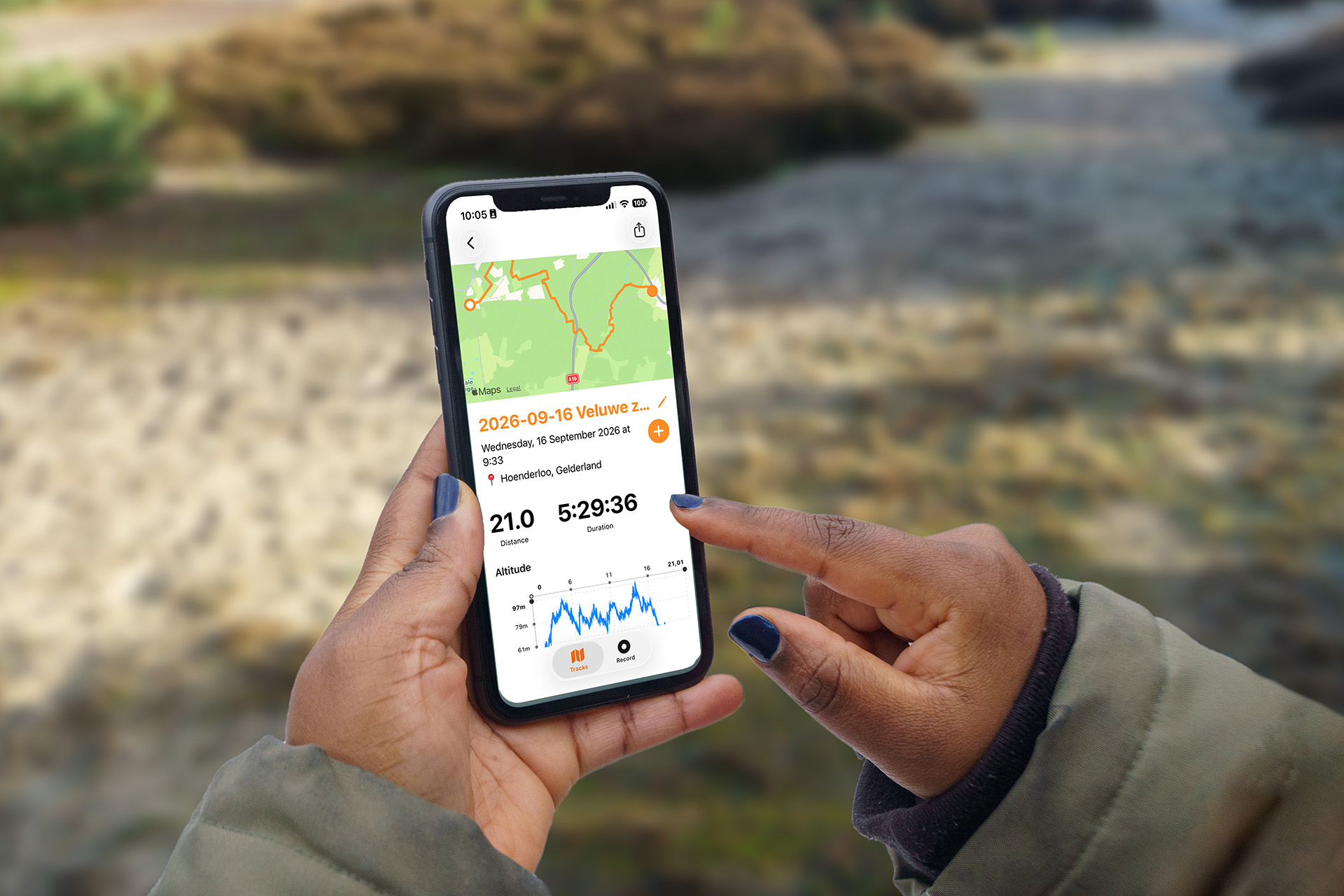
On a long hike you do not want to keep your iPhone screen on. TrailTrackr continues to record your route in the background while the screen is locked, as long as iOS location access is set up correctly.
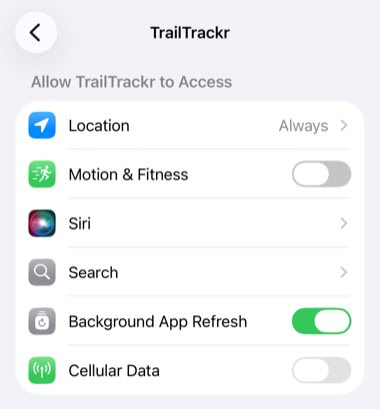
Settings TrailTrackr needs
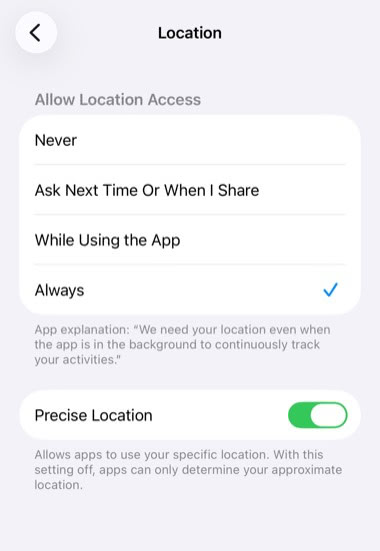
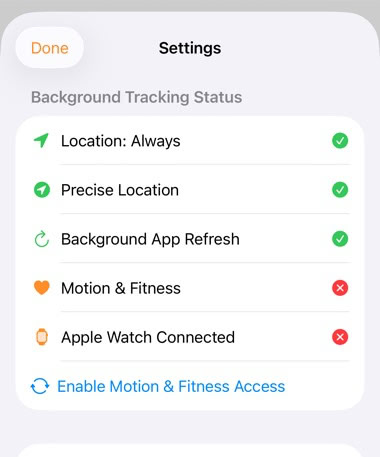
- Location access set to Always, so recording can continue when the app is not on screen.
- Precise Location turned on for accurate GPS points.
- Background App Refresh enabled for the app.
TrailTrackr checks these permissions and shows what is missing in Settings.
Setting up background tracking
TrailTrackr needs background location access to keep recording when your screen turns off or you lock your phone. Here is how the setup works from start to finish.
Why “Always”?
A recording happens while your phone is in your pocket: the screen is locked or you are in another app. With only While Using the App (Android: Only while using the app) the system can stop sending your location as soon as TrailTrackr is no longer on screen, so your track gets gaps or stops. Always (Android: Allow all the time) lets TrailTrackr keep receiving your location in the background.
Precise Location is needed to record an accurate route. Background App Refresh (Android: Background Activity, battery optimization off) stops the system from pausing the app to save power. Your tracks stay on your device; see the privacy policy.
iPhone (iOS)
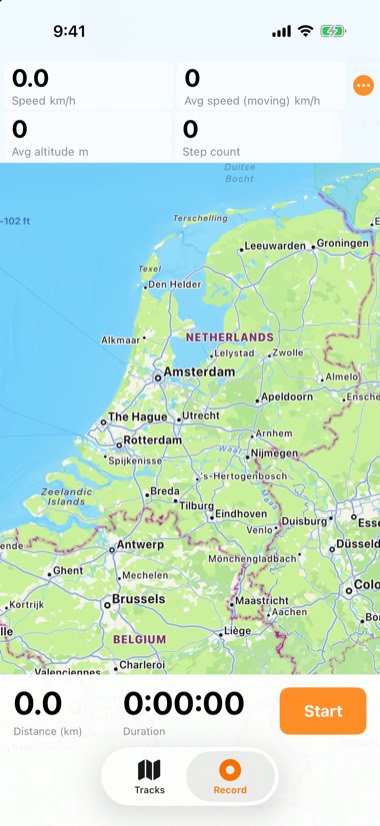
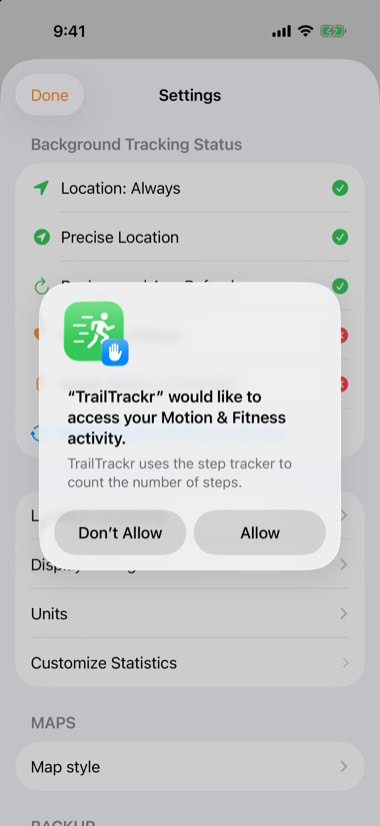
TrailTrackr needs Location: Always, Precise Location and Background App Refresh. Follow these steps one by one.
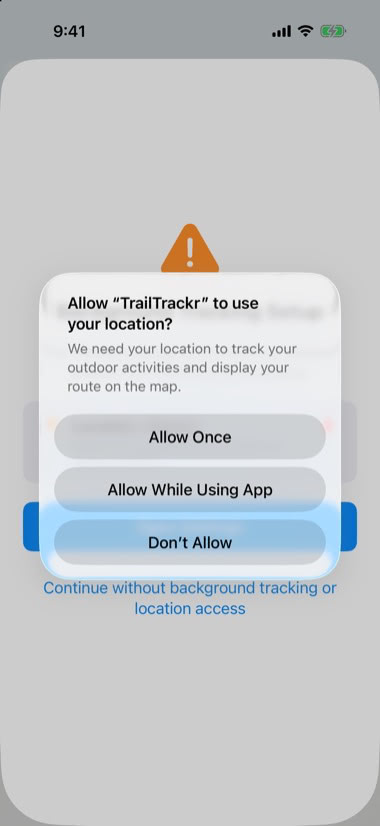
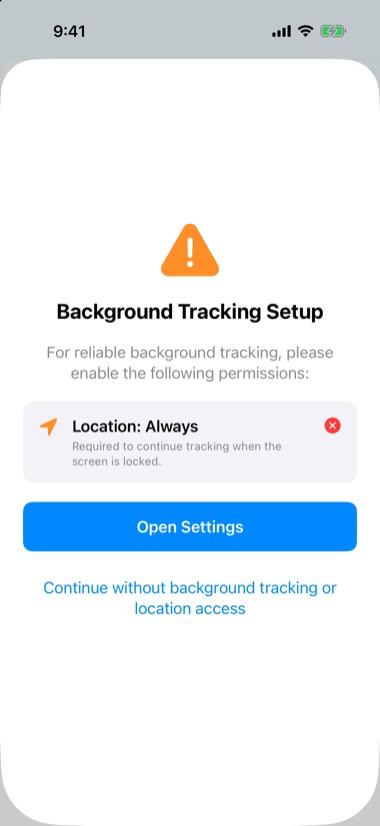
What happens while the screen is locked
The app keeps requesting continuous location updates while you record. iOS shows its blue location indicator while an app uses your location in the background. The app saves your track progress regularly, so an interrupted recording can be continued or saved.
Saving battery on long hikes
TrailTrackr only stores a GPS point when enough time (5 seconds by default) and distance (15 meters by default) have passed and the reported accuracy is good enough (50 meters by default). You can change these values or use the Battery Saver preset. If nothing is accepted for a while, the next fix is accepted so the route does not stall. In iOS Low Power Mode the accuracy limit is relaxed while the app is in the background.
Optional display settings help as well: keep the display on only when you want it, and let the proximity sensor dim the screen when the phone is in your pocket.
Limits you should know about
GPS quality depends on the sky view, terrain, weather and your device. Dense forest, canyons and buildings can reduce accuracy or cause gaps, and no app can fully prevent this. Maps need an internet connection, but recording GPS points does not. Offline maps are not available yet.